Home Assistant
Home Assistant runs on the small black computer under Camille's picture in the office and connects everything in the house — lights, locks, security, the car charger, fans, the garage door, and more. It's what makes Alexa commands work for things that aren't normally Alexa-compatible, and it runs the automations that lock the doors when you leave and arm the alarm at night.
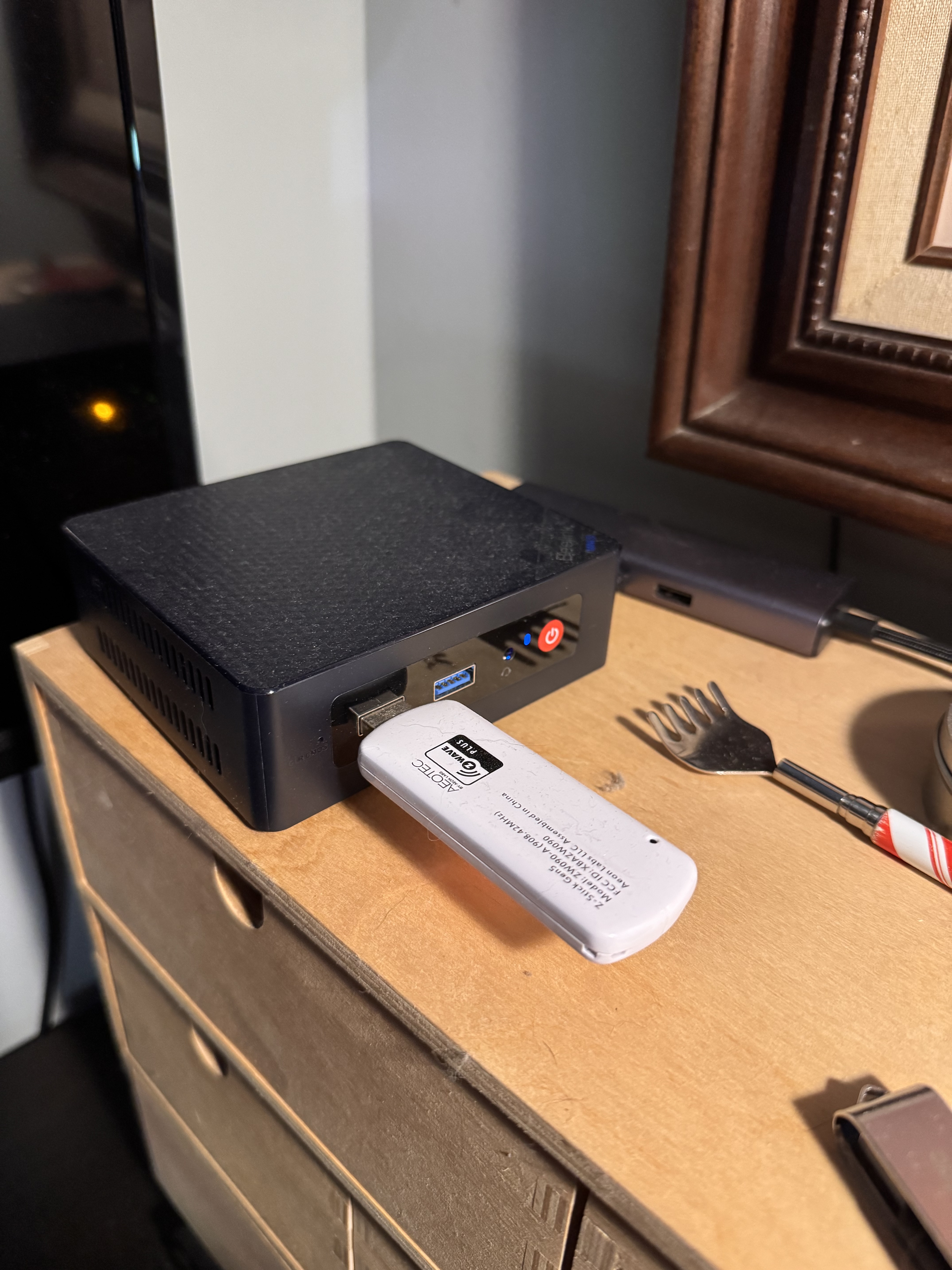
You don't need to understand it. But you do need to know how to restart it and what to do when something stops responding.
Restarting Home Assistant
Many problems resolve with a restart. This is the first thing to try when automations stop working, Alexa commands start failing, or something that was working yesterday isn't today.
- Open the Home Assistant app on your phone.
- Open the left-side menu and select Settings.
- Tap the three vertical dots in the upper right corner.
- Tap Restart Home Assistant.
- Tap Restart on the confirmation screen.
Wait 2–3 minutes before testing again. Home Assistant takes a moment to fully come back up.
Any time the router has been unplugged and plugged back in, Home Assistant also needs
to be restarted using these same steps.
If Nothing Is Working
Run through this in order, stopping when things come back:
- Is the internet working? Open a browser on your phone and try a website. If the internet is out, see Home Network.
- Is the Beelink on? The small black box under Camille's picture in the office should have a light on. If it's off, press the power button.
- Restart Home Assistant using the steps above.
- If the app won't connect at all, try closing and reopening it, then toggling your phone's WiFi off and back on.
If none of that helps — call Grant.